
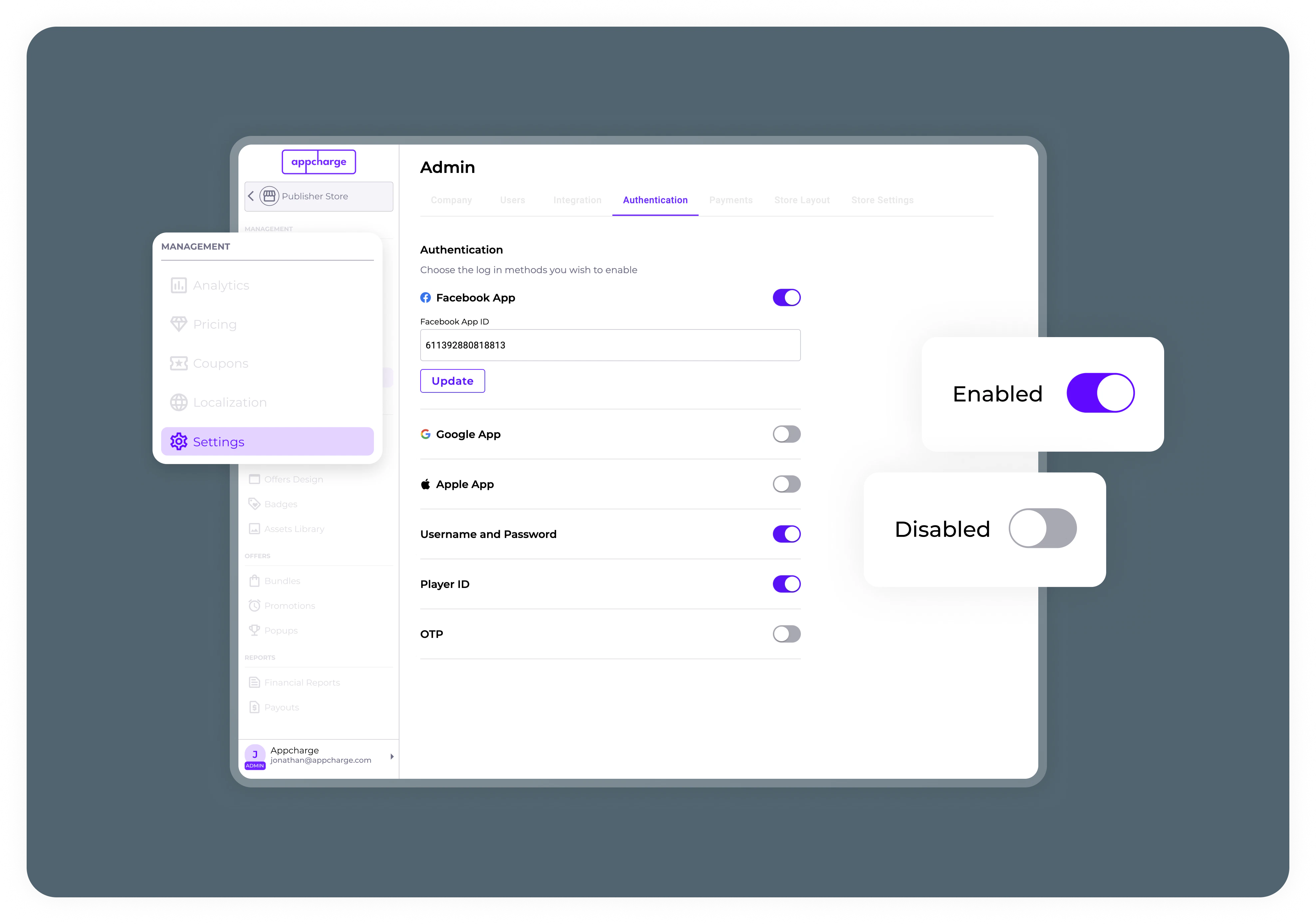
SSO Login
You can enable the following Single Sign-On (SSO) methods:Facebook SSO
To enable Facebook SSO:- Turn on the Facebook App toggle.
- Follow the instructions in the Facebook SSO Login Guide, and then enter the App ID of your game registered in Meta for Developers in the Facebook App ID field.
- Click Update to save your changes.
Google SSO
To enable Google SSO:- Turn on the Google App toggle.
- Follow the instructions in the Google SSO Login Guide, and then enter the App ID of your game registered in Google in the Google App ID field.
- Click Update to save your changes.
Apple SSO
To enable Apple SSO:- Turn on the Apple App toggle.
- Follow the instructions in the Apple SSO Login Guide, and then enter the App ID of your game registered in Apple in the Apple App ID field.
- Click Update to save your changes.
Password Login
To enable password-based login:- Turn on the Username and Password toggle. To learn more, see About Password Login.
- Click Update to save your changes.
Player ID Login
To enable Player ID Login:- Turn on the Player ID toggle.
- In the Find Your Player ID: Link Title field, add link text that will appear on the login page. For example, Where can I find my Player ID?.
- In the Find Your Player ID: Link URL field, provide a URL linking to an article that helps players locate their Player ID.
- Click Update to save your changes.
Game Redirect Login
To enable Game Redirect Login:- Turn on the OTP toggle.
- In the Initiate Game Auth Callback field, paste the URL for generating OTP links. This URL should be the webhook endpoint that generates OTPs for your web store.
- From the Desktop Text Model drop-down, select the number of digits for the player code (4 or 6).
- Click Update to save your changes.
Pre-Authenticated Login
To enable Pre-Authenticated Login:- Turn on the OTP toggle.
- Leave the Initiate Game Auth Callback field empty, unless you are also implementing Game Redirect Login.
- From the Desktop Text Model drop-down, select the number of digits for the player code (4 or 6).
- Click Update to save your changes.