
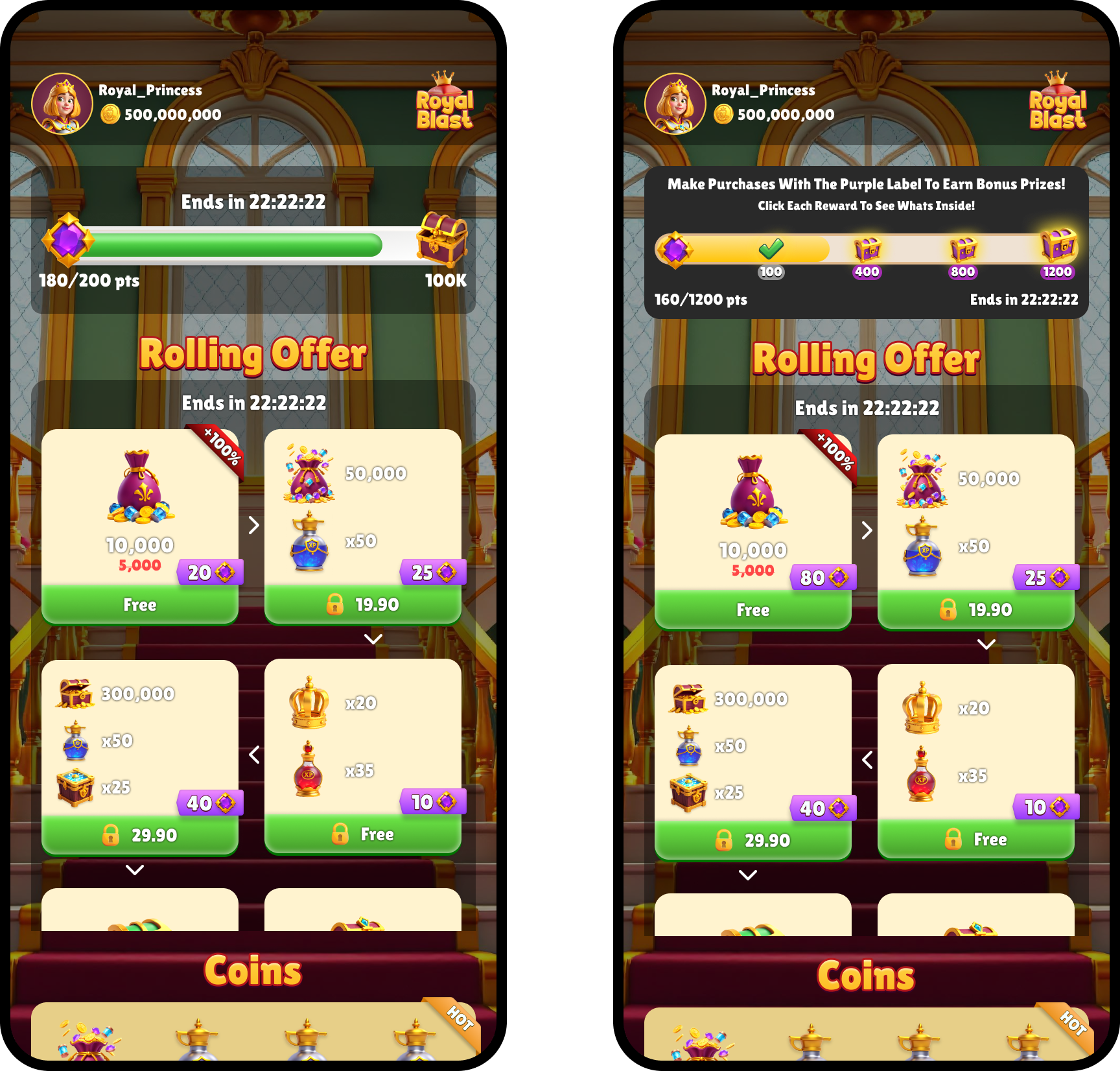
How it works
Progress Bars support two types, Classic and Milestones. You can configure multiple targets for either type. The type determines what a target is called and how targets are displayed on the bar. When a player completes a target, they receive their reward and a free order is created. The Grant Award Callback is called and order events are triggered. After the player completes all targets, the Progress Bar and Points Ribbons are removed from the web store.If you’re using the Web Store Personalization API service, you can customize each target’s reward by specifying the product and quantity players receive upon completion.
Classic Progress Bar
The target is called a mission. You can configure multiple missions, but the bar displays one mission at a time. Players advance through them sequentially. When a mission is completed and additional missions are available, the Progress Bar automatically transitions to the next mission. The bar visually clears and begins filling again to represent progress toward the new mission’s point requirement. This reset is visual only and doesn’t remove any earned points. The next mission is revealed with an animation, while Points Ribbons remain visible on contributing offers. If a single purchase completes more than one mission, the bar fill animation continues through each mission without pausing, repeating this transition after each completion.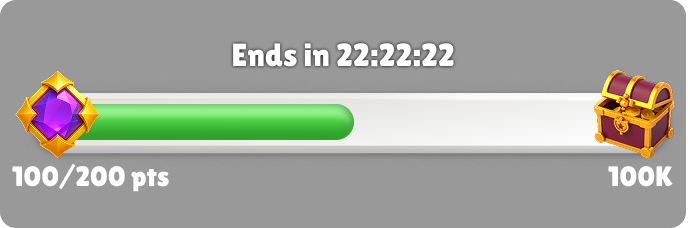
Milestone Progress Bar
The target is called a milestone. You can configure multiple milestones, and the bar displays all of them at once. Players can see every reward ahead of them, including the grand reward at the final milestone. If one purchase earns enough points to pass multiple milestones, the bar fill animation continues through each milestone without pausing. A completion mark is applied to each passed milestone.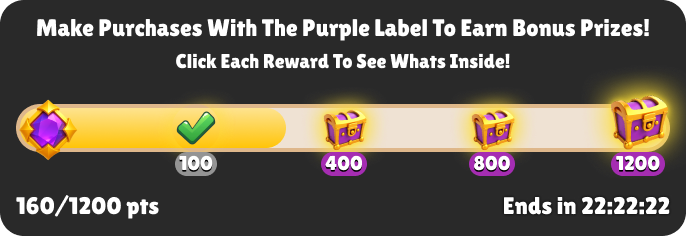
Assign Progress Bar points to offers
Using the Publisher Dashboard or the Offers V2 API, choose which offers contribute points toward the Progress Bar and how many points each offer grants. In the web store, contributing offers display a Points Ribbon showing how many points players earn when collected or purchased.Daily Bonuses, Reward Calendars, and Checkout Link offers don’t contribute points toward the Progress Bar.
Rollover points
Points earned beyond the current target’s requirement roll over to the next target. This ensures no progress is lost and that completing one target contributes to the next. If no targets remain, the Progress Bar is considered complete. If you later add a new target, any rollover points are automatically applied toward it.If a Progress Bar is deleted from the Publisher Dashboard, or if a scheduled Progress Bar ends, both the Points Ribbons and any accumulated rollover progress are permanently lost.
Lifecycle and updates
This section covers changes you can make to a Progress Bar after it has been created, including how inactivity, scheduling, and target configuration updates affect current and future player progress.Set a Progress Bar to inactive
If you set a Progress Bar to inactive, it’s removed from the web store, but player points are preserved. If the Progress Bar is later reactivated, players see it with their existing progress.Schedule a Progress Bar
You can schedule a Progress Bar to appear during specific time periods. When scheduled, a countdown timer is displayed, creating a sense of urgency for players. When the scheduled time ends, the Progress Bar is removed from the web store.Update target configuration
Appcharge doesn’t recalculate or redistribute player progress when you update a mission or milestone, such as changing its required points or the total number of targets. Completed targets remain completed, and players keep rewards they’ve already received. Appcharge doesn’t grant rewards retroactively for targets the player didn’t complete under the original configuration. The point requirement for a target is locked when the player has completed it or is in the middle of it. Only targets the player hasn’t reached use the updated configuration. If the Progress Bar is inactive when you update it, the same rules apply when it becomes active again.Add or remove targets
When you change the total number of targets, the player continues their current mission or milestone. Appcharge doesn’t move the player backward or recalculate progress. If you reduce the number of targets so that fewer targets remain than the target the player is currently on:- Their current mission or milestone becomes the final target.
- The Progress Bar ends after the player completes that mission or milestone.
- The player doesn’t receive rewards for removed missions or milestones.
Update required points
If you update the number of required points, the same no-recalculation rules apply. For example, a player has earned 25 total points with this original sequence:- Mission/Milestone 1 (10 points): Completed, and the player received the reward.
- Mission/Milestone 2 (20 points): Active, with 15 of 20 points earned.
- Mission/Milestone 3 (30 points): Not yet reached.
- Mission/Milestone 1: Remains completed, and the player keeps the reward.
- Mission/Milestone 2: Retains its original 20-point requirement and the player’s existing progress of 15 points.
- Mission/Milestone 3: Uses the updated 10-point requirement when the player reaches it.
Monitor Progress Bars
You can track Progress Bars by:- Viewing all Progress Bars in Offers > Progress Bar in the Publisher Dashboard, where you can filter by external ID and status.
- Setting up webhook events for real-time updates on player activity, offer interactions, and orders.