> ## Documentation Index
> Fetch the complete documentation index at: https://docs.appcharge.com/llms.txt
> Use this file to discover all available pages before exploring further.
# Add a Tab
* To get access to this feature, contact your account manager.
* This feature currently supports bundles, special offers, and rolling offers only.
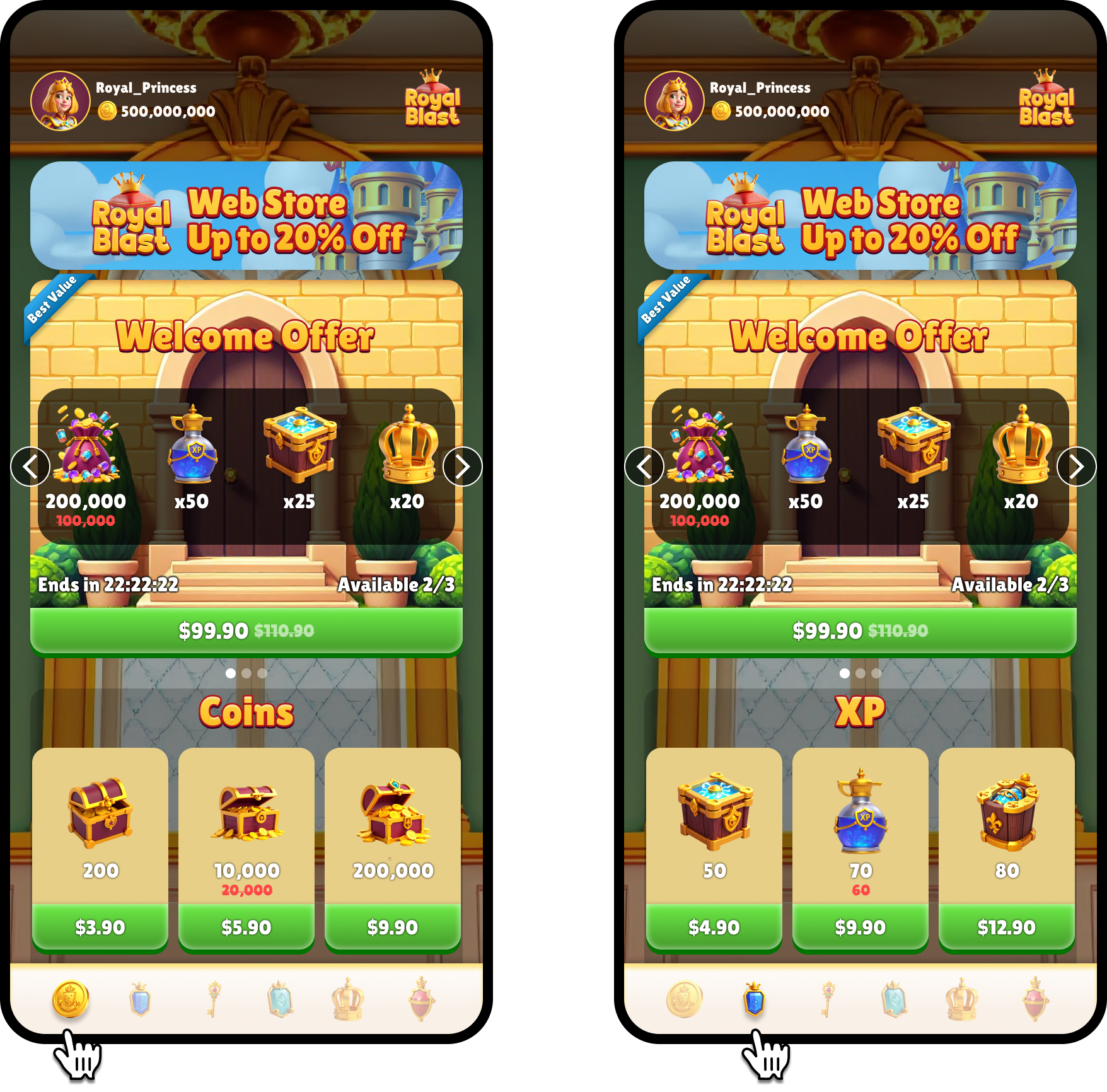
Tabs allow you to organize and display different offers in your web store. You can assign an offer to a single tab or to all tabs. When players click a tab, they'll see the offers assigned to it. Tabs can appear as icons or as text labels, depending on your setup. A tab will only appear in the web store if at least 1 offer is assigned to it, either directly or by assigning the offer to all tabs.
## Set up tabs
To set up tabs in the Publisher Dashboard, first create a tab, and then assign offers to it. You can also assign offers to a tab using the `publisherTabId` property via the [Offers API](/../../api-reference/webstore/offers-v2/introduction).
When adding images, if you provide an external image URL, Appcharge saves and uses the URL as-is. Appcharge doesn't download, copy, upload, or host the image. If you use an external image URL, host the image on your own infrastructure and keep it available at the provided URL.
We recommend uploading image files instead of using external URLs when possible. Appcharge hosts uploaded files on its CDN.
### Create a tab
To create a tab:
1. In the sidebar menu, go to **Studio** > **Builder**.
2. In the **Store Settings** tab, scroll to **Tabs**, and then click the arrow to expand the component.
3. Complete the following fields:
* **Tab Name**: Enter the Tab title that will appear in the web store.
* **Tab ID**: Enter an ID for the Tab.
* **Icon**: Select or upload an image icon representing the Tab. This icon is what players click to select the tab. If you don't upload an icon, the tab will be displayed as text, using the tab name you provided.
4. Click **Add Tab**. The tab appears in the table below.
5. Click **Save** in the top-right corner of the Store Settings page.
### Assign a tab to an offer
To assign a tab:
1. Go to the offer you want to assign a tab to. For example, **Bundles**.
2. Either create a new offer, or edit an existing one by clicking the 3 dots and selecting **Edit**.
3. In the **General** section, open the **Tab** dropdown and select either:
* **A single tab**: The offer will only appear in that tab.
* **All**: The offer will appear in every tab.
### Edit a tab
To edit a tab:
1. Go to the **Store Page** tab in the **Builder**.
2. Scroll to **Tabs** and locate the table of existing tabs.
3. Click the **Edit** icon next to the tab you want to update.
4. Update the tab details, and then click **Save**.
5. Click **Save** again in the top-right corner to update the Store Page.
### Remove a tab
To remove a tab:
1. Go to the **Store Page** tab in the **Builder**.
2. Scroll to **Tabs** and locate the table of existing tabs.
3. Click the **Delete** icon next to the tab you want to remove.
4. Click **Save** in the top-right corner to confirm the changes.