> ## Documentation Index
> Fetch the complete documentation index at: https://docs.appcharge.com/llms.txt
> Use this file to discover all available pages before exploring further.
# Add a Banner
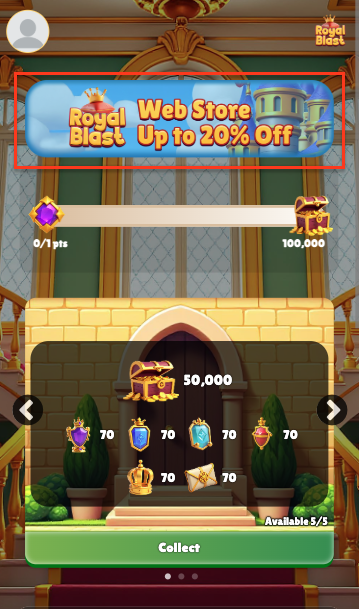
A banner is a prominent horizontal image displayed at the top of the web store that highlights important content such as promotions, announcements, or seasonal messages.
As one of the first elements players see when they open the web store, it helps create a strong first impression by aligning the store’s visuals with your brand and driving engagement with specific content or offers.
You can add a banner in the Publisher Dashboard or display personalized banners for individual players using the [Personalize Web Store Callback](/api-reference/webstore/personalization/personalize-webstore-callback).
To add a banner:
1. In your Publisher Dashboard, go to **Studio > Builder** and select the **Store Page** tab.
2. Scroll down to the **Banner** section.
3. Upload or select an image.
If you provide an external image URL, Appcharge saves and uses the URL as-is. Appcharge doesn't download, copy, upload, or host the image. If you use an external image URL, host the image on your own infrastructure and keep it available at the provided URL.
We recommend uploading image files instead of using external URLs when possible. Appcharge hosts uploaded files on its CDN.
4. At the top-right of the page, click **Save**.
## Player Level Banners
You can optionally configure banners to display dynamically based on a player’s level. This feature isn't supported in all templates. To request access, contact your account manager.